
In-store tablet
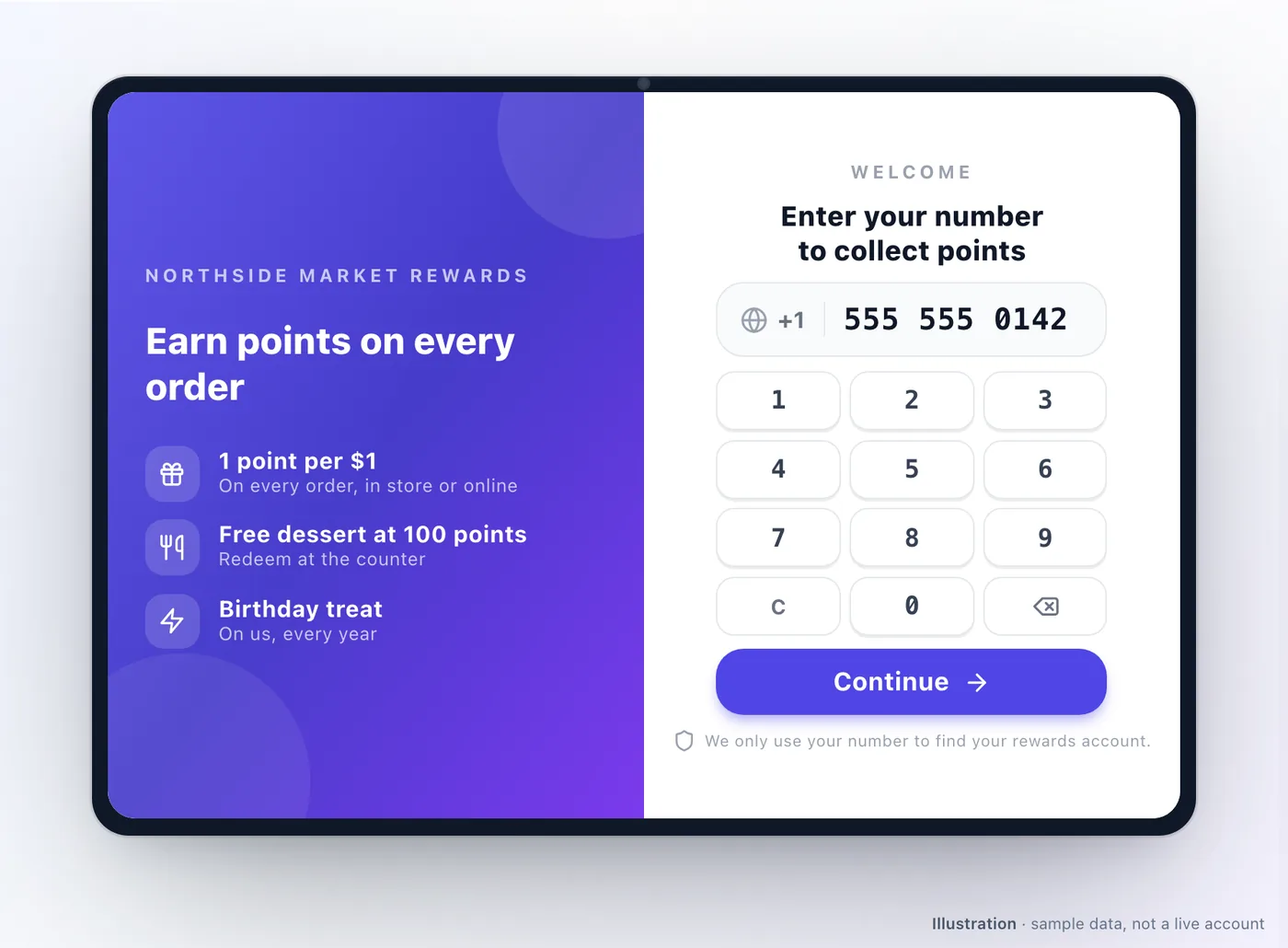
The in-store tablet brings your loyalty programme to the counter. A walk-in customer enters their phone number, sees their points, vouchers and membership benefits, and asks to redeem something — which staff approve from the partner app.
Pairing it
Section titled “Pairing it”The tablet pairs differently from the other devices. It shows a 6-digit PIN, valid for five minutes, and a staff member approves it from the partner app. There is no login and no enrolment code.
Once paired, tablet and app keep a heartbeat between them. If that stops for long enough the pairing lapses and the tablet returns to its pairing screen — which is what should happen if a tablet walks off.
Re-pairing requires the PIN again, so a tablet cannot be quietly moved to a different outlet.
What a customer does
Section titled “What a customer does”- They enter their phone number on the tablet.
- If they have an account, it is found. If not, they can register there and then — name, birthday, and a per-channel choice about marketing.
- They see their reward points, wallet balance, vouchers, membership benefits and any pending offers.
- They request a redemption.
- A staff member approves or declines it in the partner app, and the tablet updates immediately.
The approval step is deliberate. It keeps a person in the loop for anything that costs money, and it means the tablet can sit unattended on a counter without being a liability.
Registration and consent
Section titled “Registration and consent”The registration flow is the cheapest list-building you have: a customer standing at your counter, already buying, asked once. Consent is captured per channel, so somebody can accept email and refuse SMS, and it feeds the same consent your campaigns respect — see Broadcast.
You control the banner on the phone-entry screen and whether the marketing consent prompt appears at all, in your design settings. Use the banner to say why somebody should bother: “Check your points” beats an empty box.
Placing it
Section titled “Placing it”- Where somebody is already waiting — beside the till, not across the room.
- Reachable and readable without leaning.
- Powered. A tablet that dies at lunchtime is a tablet nobody trusts.
- Where staff can see it, since every redemption needs their approval.
Offline behaviour
Section titled “Offline behaviour”The tablet shows a network indicator and reconnects on its own, retrying with increasing patience rather than giving up. Its fonts are held locally, so it still looks right while it is reconnecting.
It cannot look up a customer without a connection — the account is not on the tablet. If the outlet’s network is unreliable, fix that before deciding the tablet is unreliable.
Troubleshooting
Section titled “Troubleshooting”| Symptom | Try this |
|---|---|
| The PIN is not accepted | It expires after five minutes; generate a fresh one |
| It returned to the pairing screen | The heartbeat lapsed, or it was reset. Pair again |
| A customer is not found | Confirm the number, including country code — they may have registered with another |
| A redemption never completes | It needs approval in the partner app; check somebody is signed in there |
| Nothing loads | Check the outlet’s network; the tablet holds no customer data of its own |
| The consent prompt is missing | It can be switched off in design settings |
| Customers try to order on it | Expected — it is a loyalty counter. Consider a Self-order kiosk |
Related: Devices & staff PINs · Reward points · Marketing Autopilot · Customer Experience
Was this page helpful?
Thanks — that helps.
This site uses a chat widget that sets a cookie so it can keep your conversation, and with your consent it measures page traffic. See the privacy policy.